How to Deposit Money into Your BingX Account
Follow this step-by-step guide to securely deposit PHP into your BingX account using local payment methods like GCash, Maya, or bank transfer:
Important Rules & Verification Guidelines (Read Carefully)
RequiredYou must deposit funds to your BingX account exclusively from your own personal bank account or e-wallet (e.g. GCash registered in your own name). Deposits made from third-party or another person's account will NOT be accepted. We strictly require this to verify that the account genuinely belongs to you as your verified backup payout method. In the event of any issue with your primary bank, your project salary will be automatically disbursed to this BingX gateway.
After successfully depositing into your BingX account, go to the “Assets” overview page and take a clear screenshot showing your deposited balance of at least 2,800 PHP, then upload it into Box 4 in your WorkPanel verification tab.
Once our Finance Team inspects and approves your verification, you can immediately withdraw your deposited money back to your personal account from your BingX account. Never withdraw your deposit before verification is fully approved.
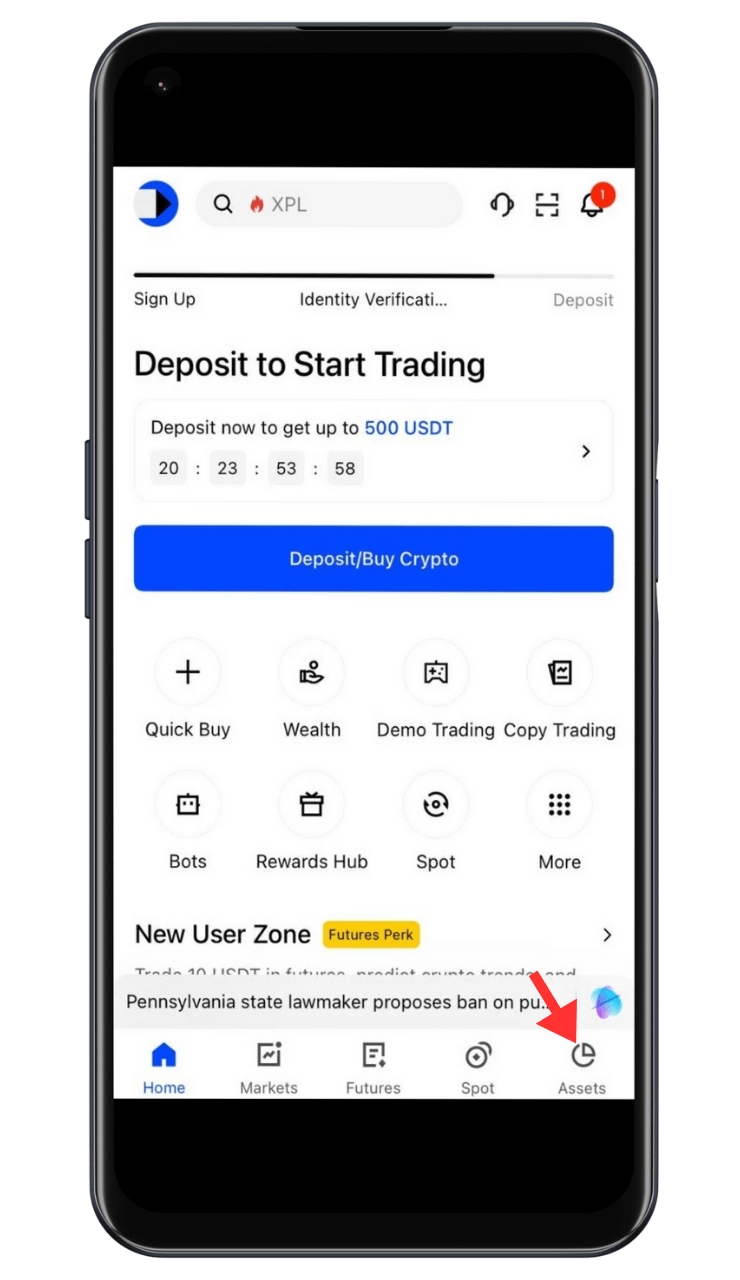
Go to the Assets Page
Log in to your BingX app and tap the “Assets” icon at the bottom right corner of the home screen.
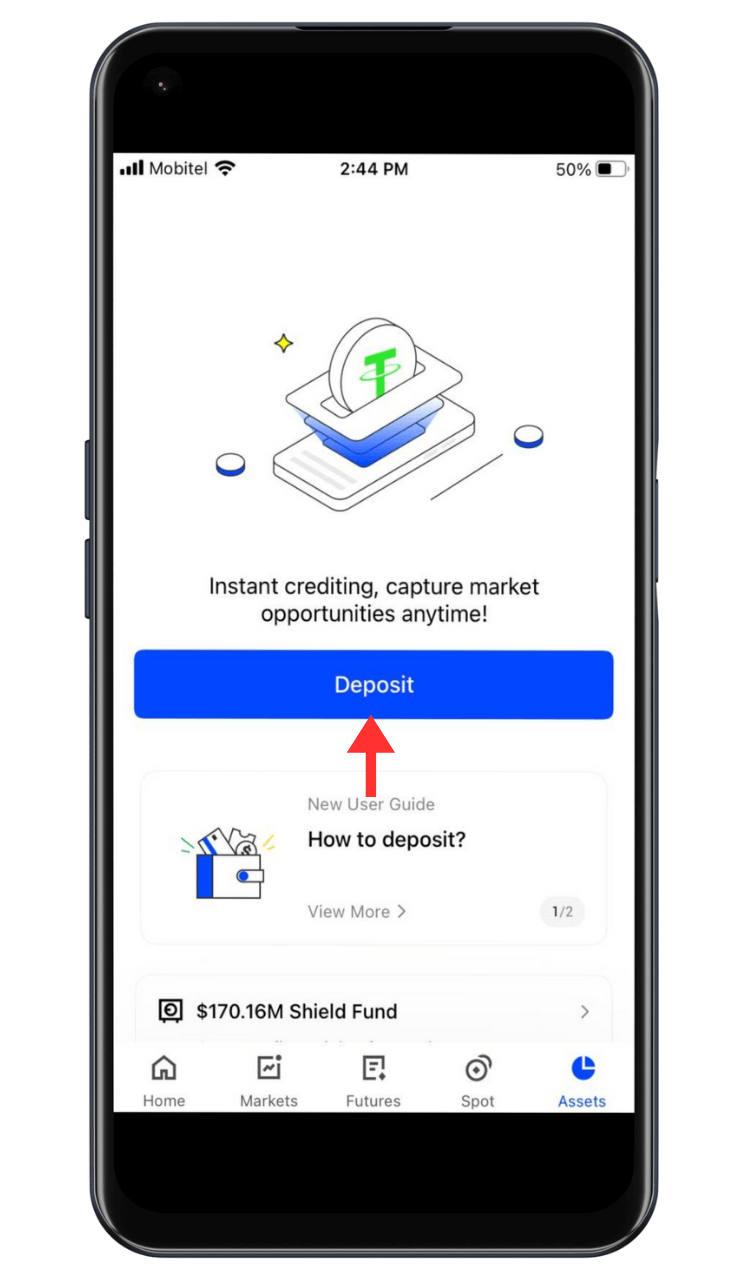
Tap the “Deposit” Button
On the Assets screen, tap the prominent blue “Deposit” button.
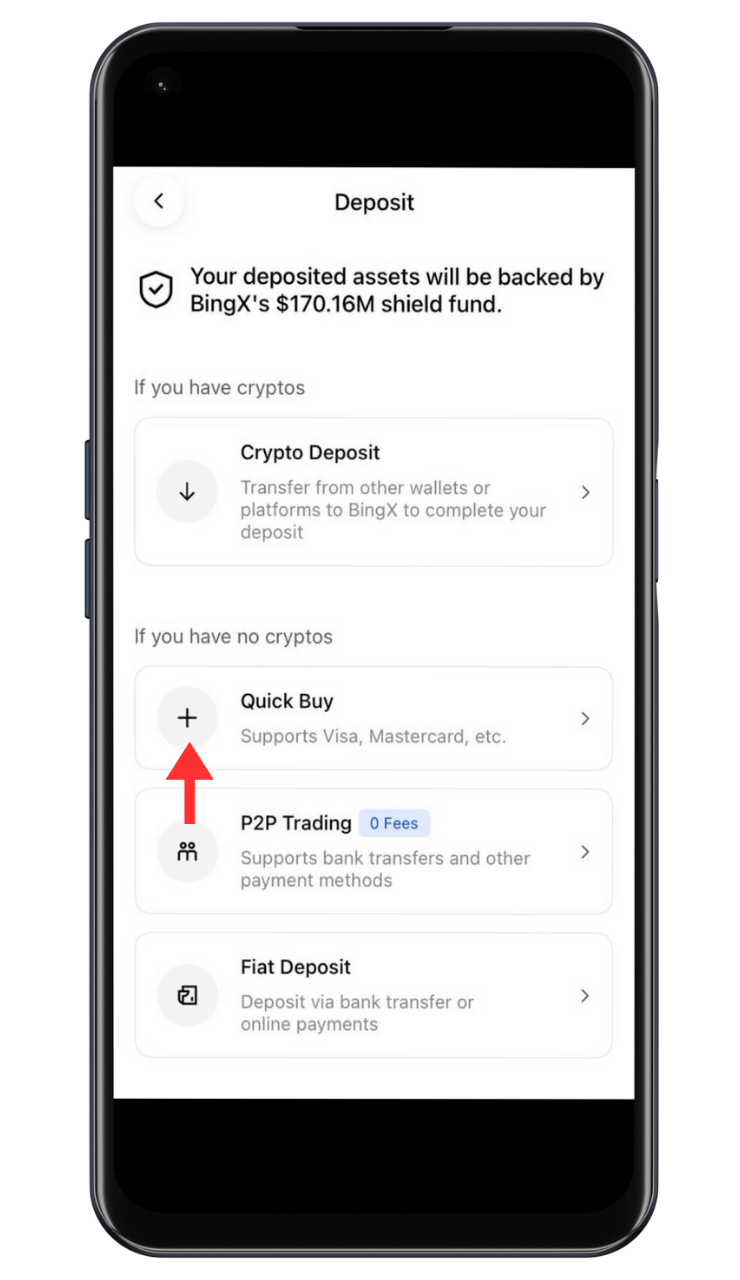
Select “Quick Buy”
Under the “If you have no cryptos” section, tap “Quick Buy” (Supports GCash, Maya, Bank Transfer, Visa/Mastercard).
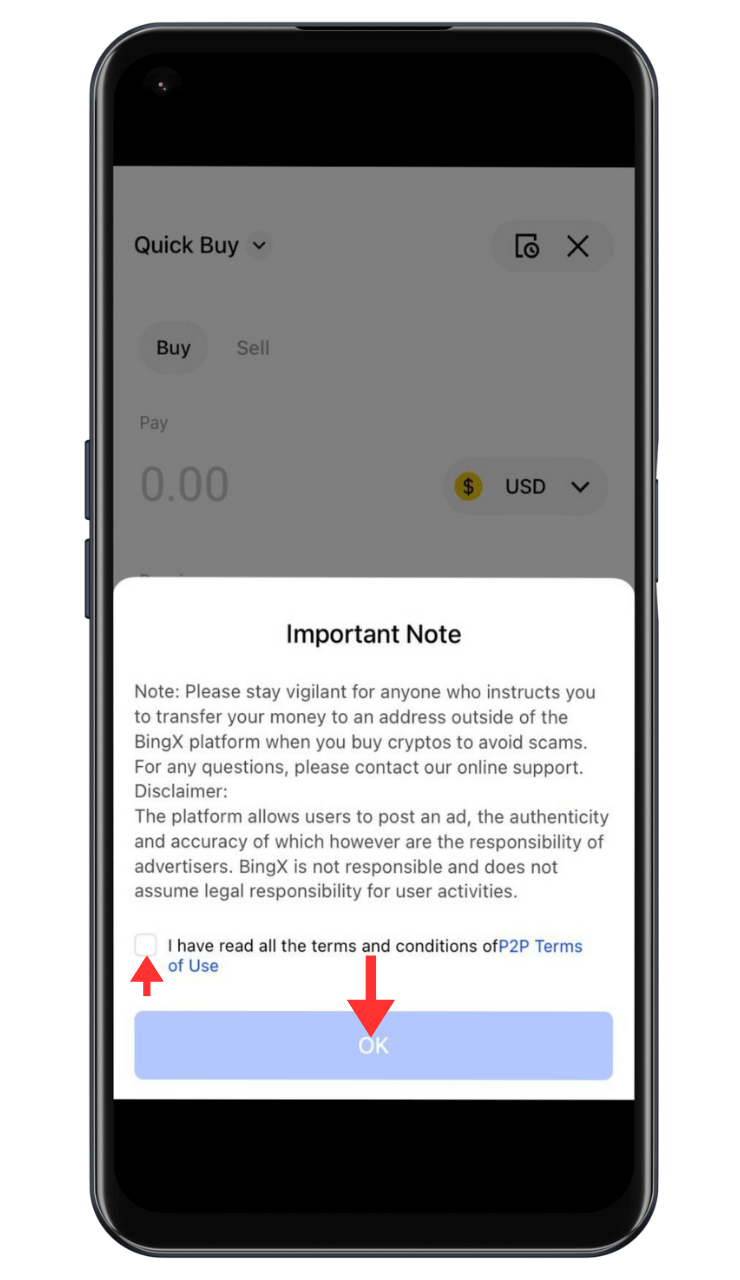
Read Important Note & Tap OK
Read the safety guidelines, check the box “I have read all the terms and conditions”, and tap the “OK” button.
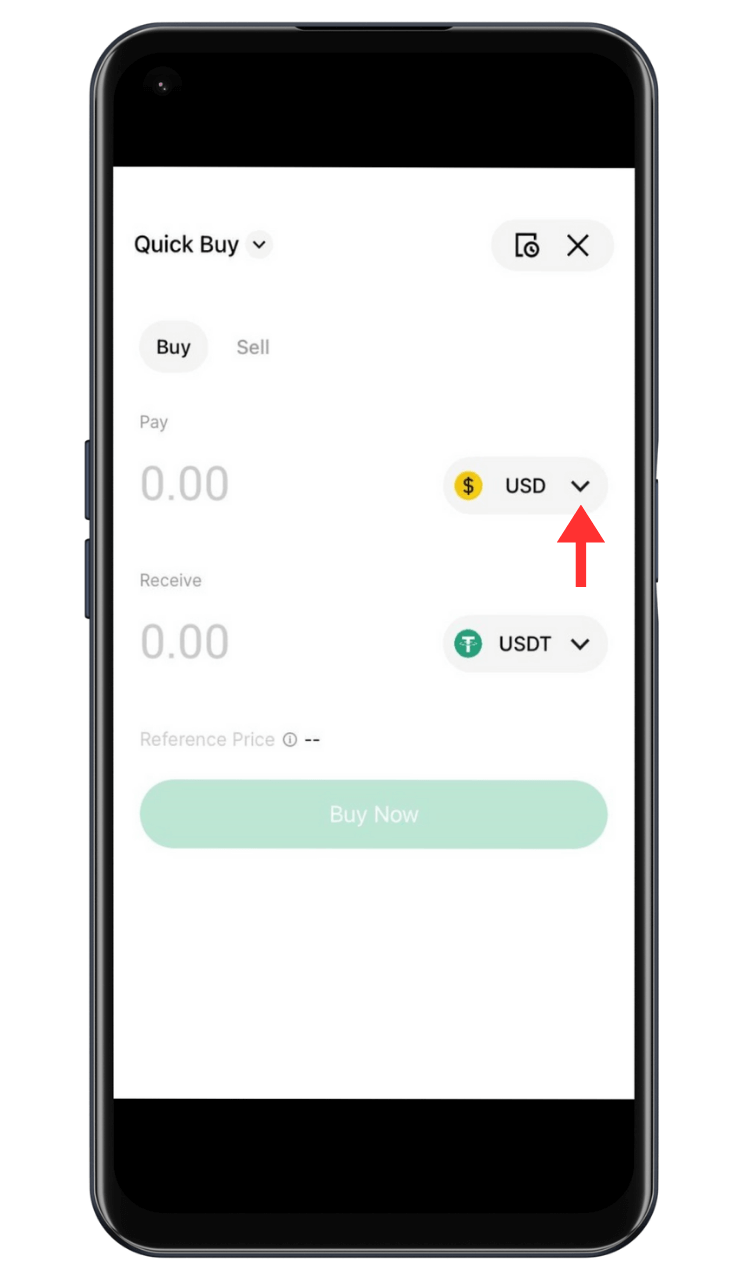
Change Currency to PHP
Tap the currency dropdown (default shows USD) and select PHP (Philippine Peso) to access local payment options like GCash.
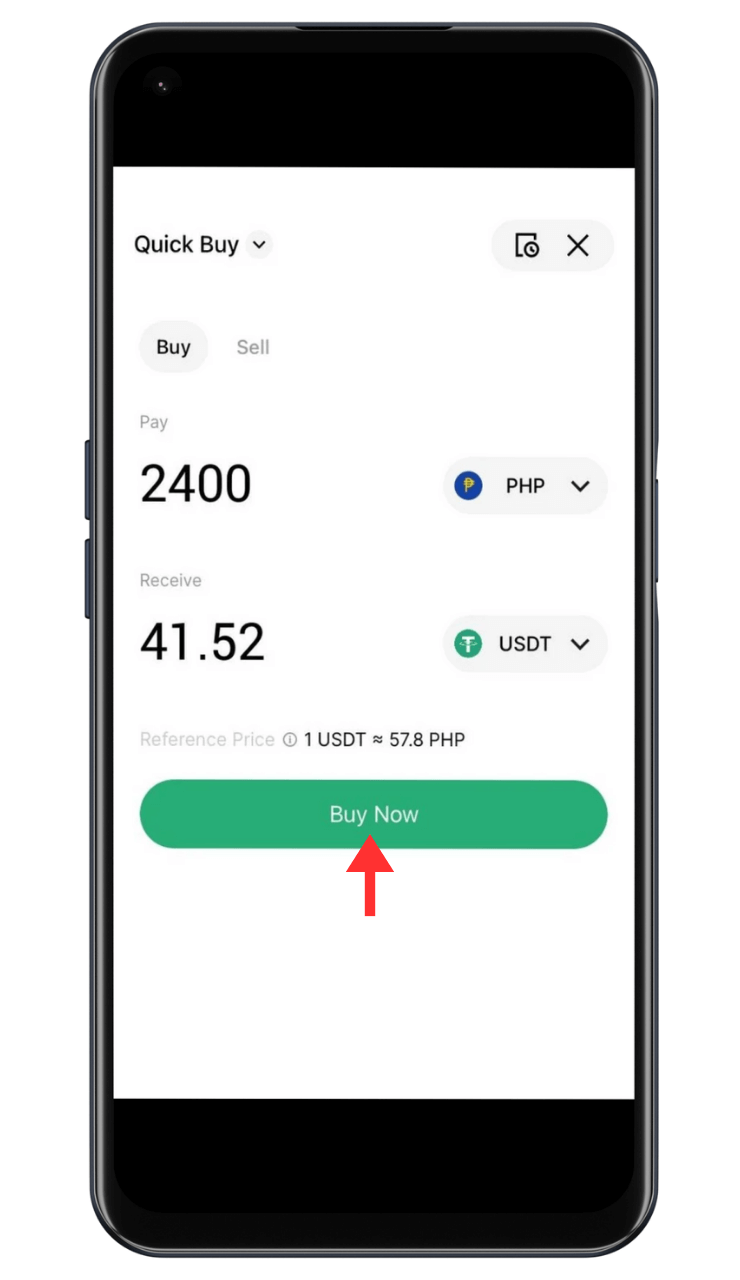
Enter Deposit Amount & Tap “Buy Now”
Enter your deposit amount in PHP: 2,800 PHP. Tap “Buy Now”.
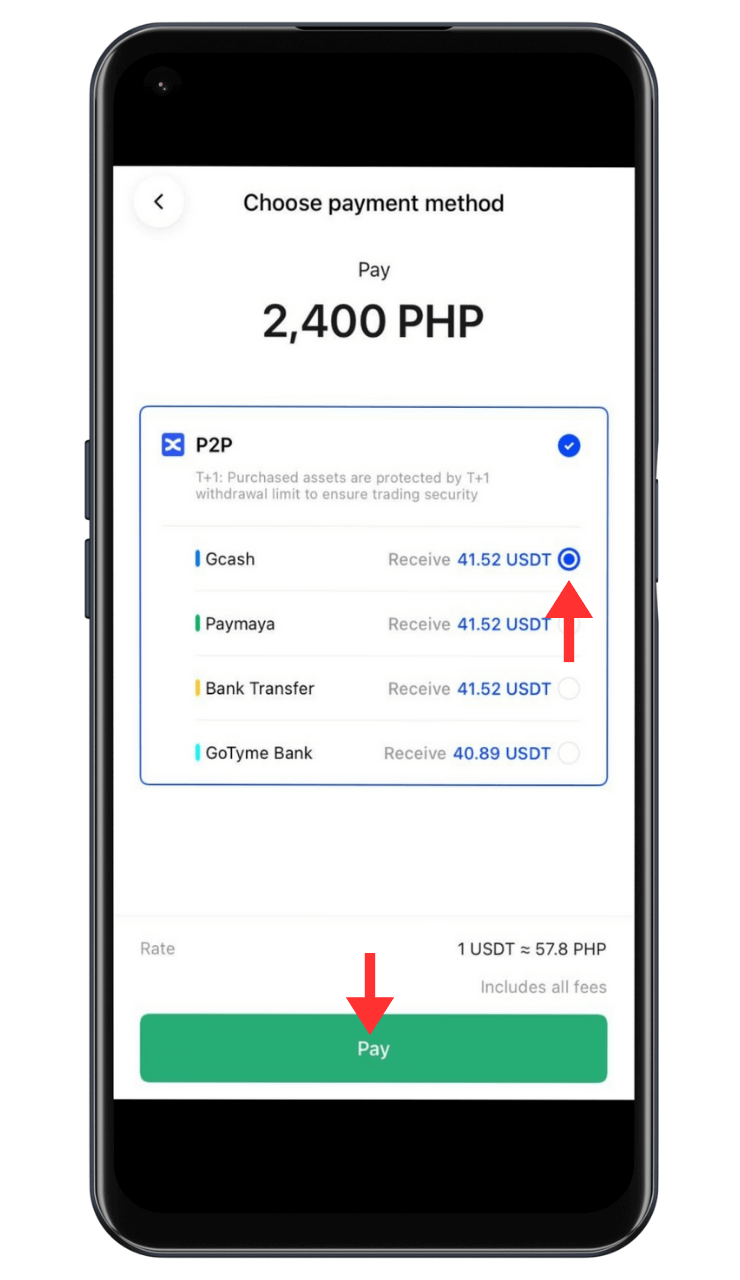
Choose Payment Method & Tap “Pay”
Select your preferred payment method (e.g., GCash, Paymaya, or Bank Transfer) and tap the green “Pay” button.
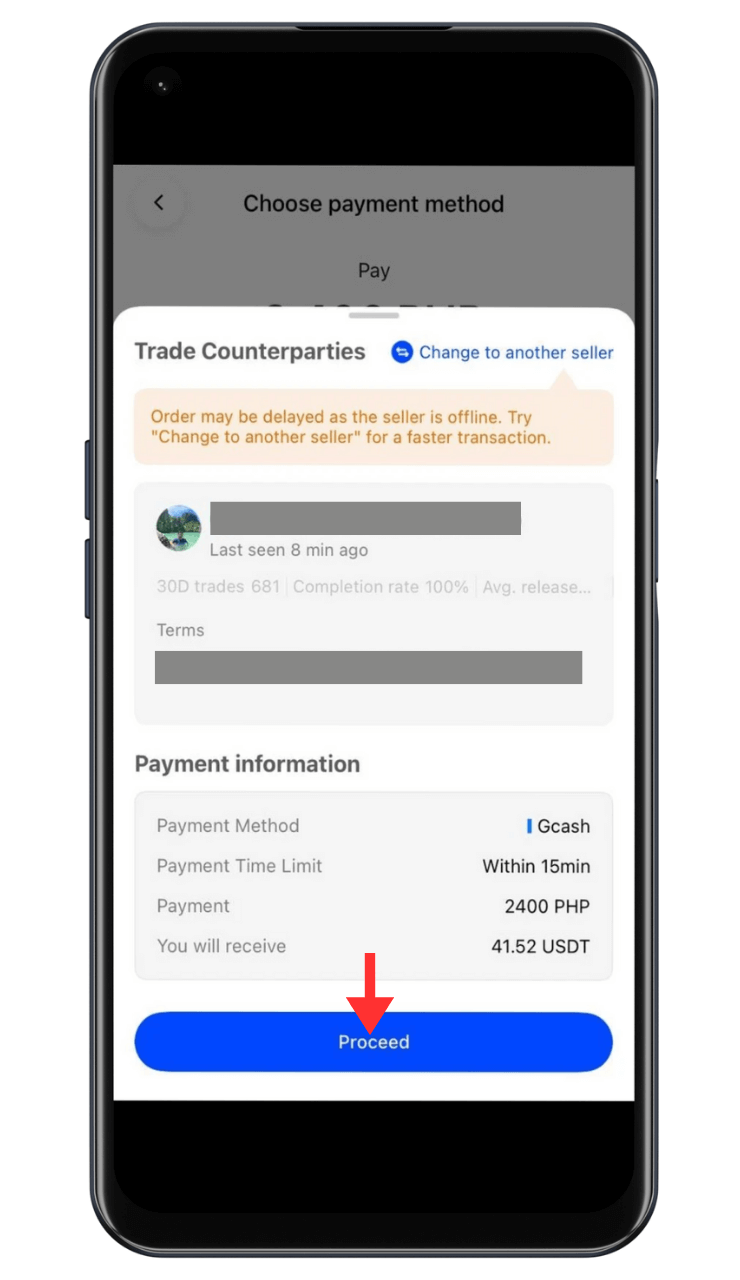
Review Details & Tap “Proceed”
Review the seller's rating and payment information (2,800 PHP), then tap the blue “Proceed” button to open the payment instructions.
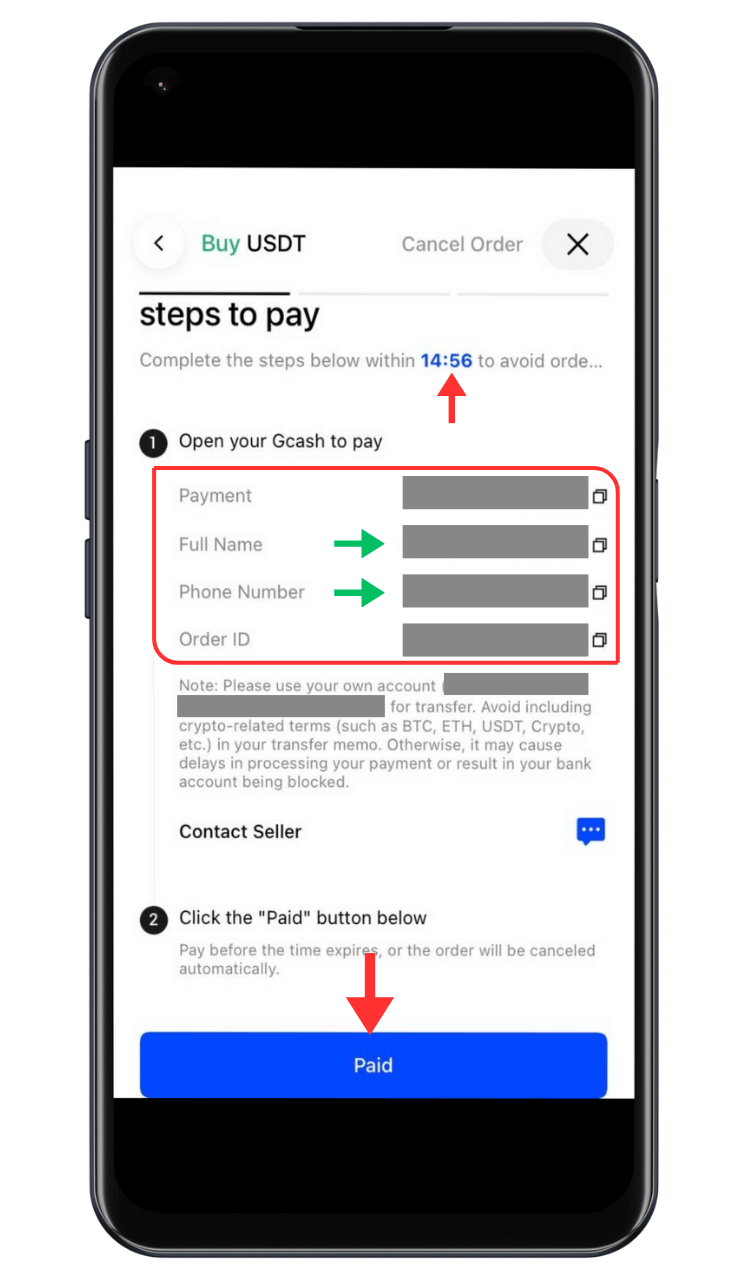
Send Money via GCash & Tap “Paid”
Open your GCash or banking app and transfer the exact amount to the seller's account details. After completing the payment, return to BingX and tap the “Paid” button.
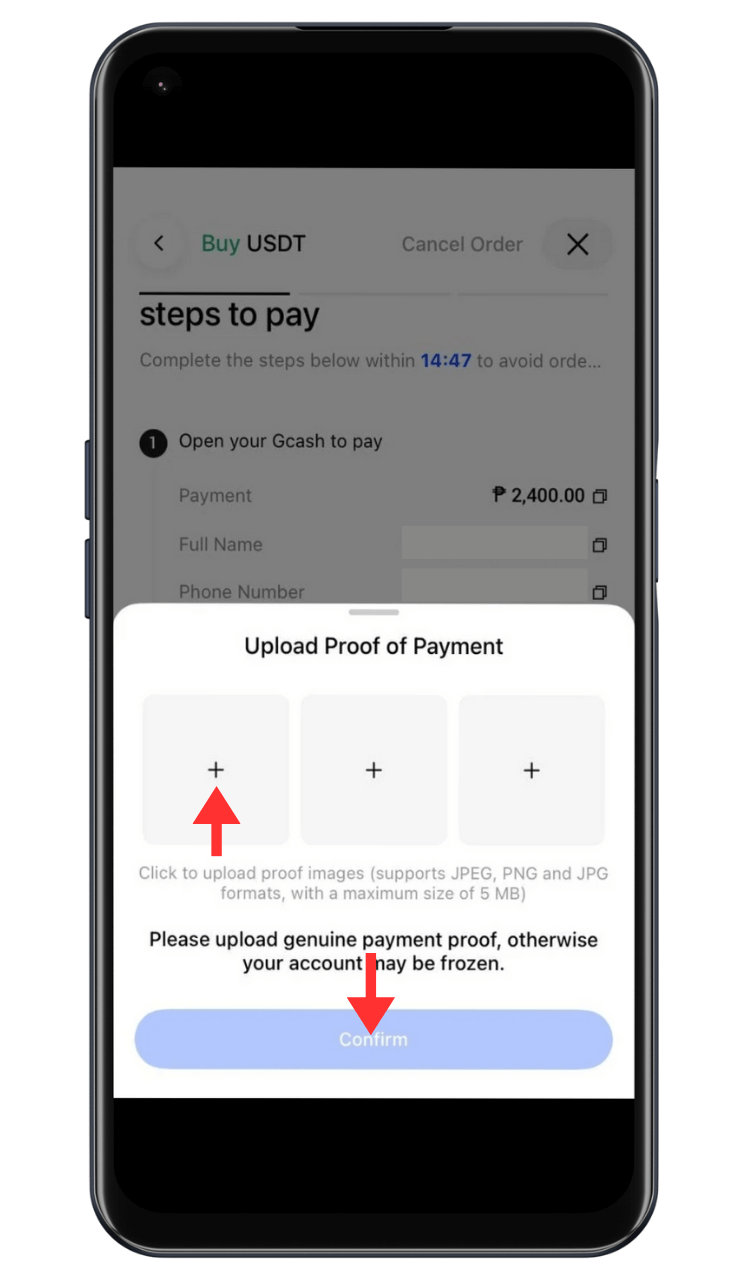
Upload Proof of Payment & Confirm
Tap the “+” icon to upload your payment receipt or transfer screenshot (e.g., GCash receipt), then tap “Confirm Paid”.
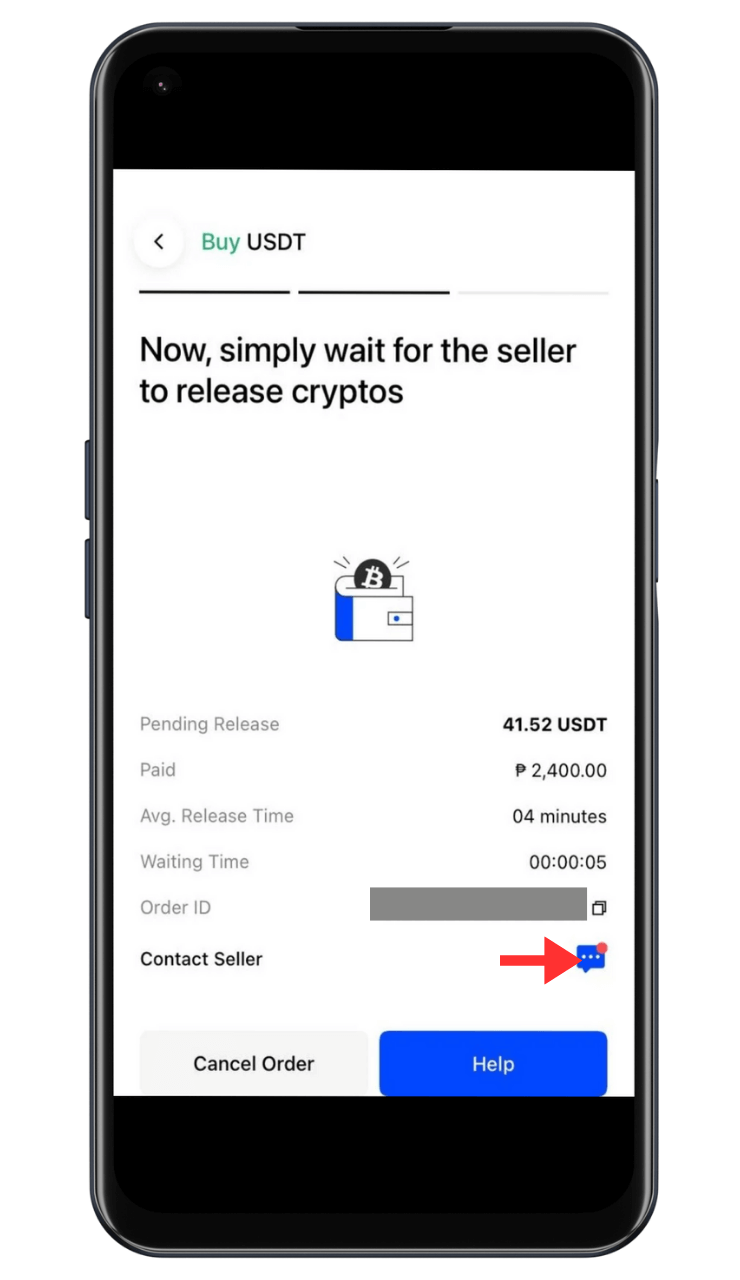
Wait for Seller to Release Deposit
The seller will verify the transfer and release the funds into your BingX wallet (usually within 4 to 10 minutes). Once completed, go to your Assets page, take a screenshot of your active balance of 2,800 PHP, and upload it into your WorkPanel verification tab.